 FTP One
Sending photos to the newsroom from the stadium
During a match, minutes count. With FTP One your iPhone bridges camera and newsroom: plug in the cable, choose where to send, and every new photo goes out on its own while you keep shooting.
Before the match
- Connect your newsroom's server, and the agency's too if you send to both.
- Charge your iPhone or bring a power bank.
- Use the press box Wi-Fi if there is one: mobile data at stadiums is often slow.
- If you shoot RAW+JPG, FTP One can send just the lighter JPGs.
1. Connect the camera
- Connect the camera with a USB-C cable. If your iPhone has a Lightning port, you need Apple's camera adapter. A card reader works too.
- If the camera asks for the connection type, choose PTP.
- Turn off the camera's auto power-off, otherwise it disconnects after a while.
- In FTP One the camera appears at the top of the home screen: choose the photos to send from there.
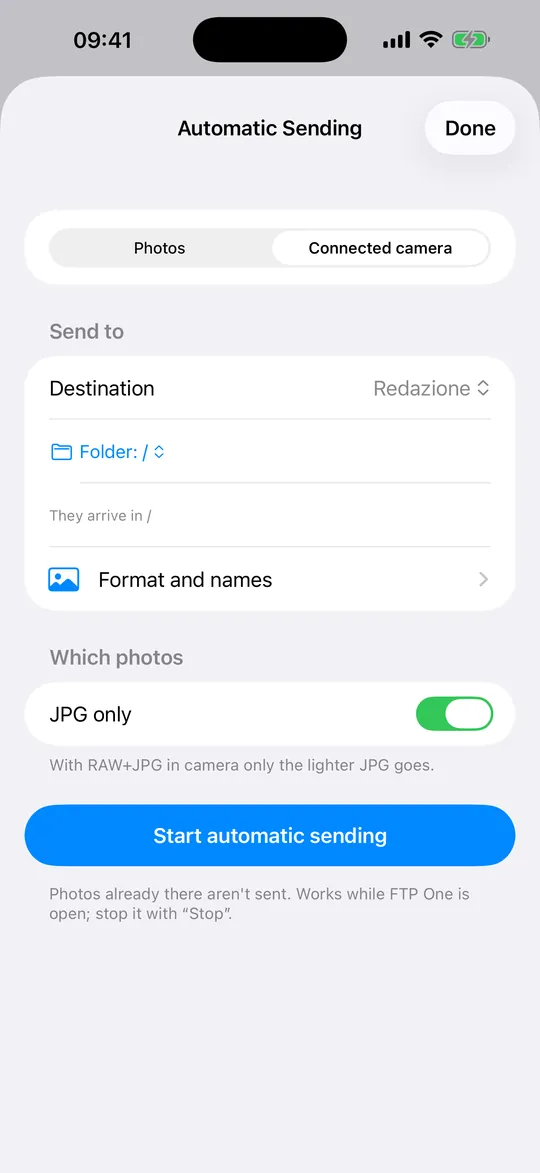
2. Turn on automatic sending
- Tap + and choose Automatic Sending.
- Choose the source: Photos or the connected camera.
- Choose where to send them and to which folder.
- If you like, only JPGs or only photos marked ♥.
- Tap Start automatic sending. To stop it, Stop.
3. The best shots, to several destinations
At half-time, pick your best photos and send them to newsroom and agency at once: each has its own bar in Transfers.
- Tap + and choose Upload Files (or send from Photos).
- In the destination list, tick several servers and clouds.
- Tap Send: they go to all of them together, each with its own bar in Transfers.
If something goes wrong
- Keep FTP One open: with iOS 18 and earlier the upload stops when the phone is locked; from iOS 26 it keeps going.
- If the camera disconnects, turn off its auto power-off.
- If the server doesn't respond, check network, address and port, and try FTP instead of FTPS (or the other way round).