 FTP One
How to send photos via FTP from iPhone
Agencies and newsrooms receive photos on an FTP server. From your iPhone you only need three details: the server address, the user name and the password, which your newsroom gives you. With FTP One you connect the server once, then send photos in a few taps.

1. Connect the server
- Tap + and choose Add Server.
- Type the address, user name and password. If you have a QR code or an ftp:// address, you can scan or paste it.
- If your newsroom uses a secure connection, choose FTPS. The port is usually 21 (990 for implicit FTPS).
- Save and tap the server: if you see its folders, you're done.
2. Send the photos
The quickest way is to start from the Photos app:
- In Photos, choose the photos and tap Share.
- Tap FTP One. If it isn't there, scroll the row of apps to the end, tap More, then Edit and add it to Favorites.
- Choose where to send them and tap Send.
- Open FTP One: the photos start sending from there and you can follow the progress.
3. Follow the upload
Each file has its own bar, with speed and time left. On iPhone, progress also shows on the Lock Screen, and from iOS 26 the upload keeps going even with the phone locked.
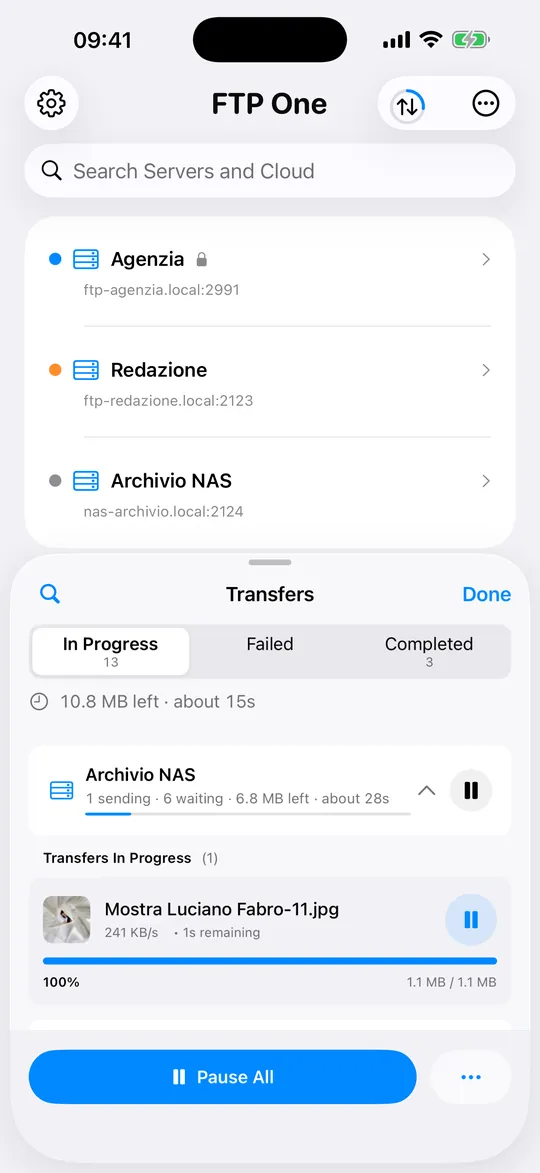

Several destinations at once
- Tap + and choose Upload Files (or send from Photos).
- In the destination list, tick several servers and clouds.
- Tap Send: they go to all of them together, each with its own bar in Transfers.
If the server doesn't connect
- The network: open a website in the browser. In hotels or stadiums you sometimes have to accept a page first.
- Address and port: check they're the ones from your newsroom. The port is usually 21, 990 for implicit FTPS.
- FTP or FTPS: try the other connection type; some servers accept only one.
- User name and password: retype them, watch out for capitals and spaces.
Tips
- Use Wi-Fi when you can: photos go out faster.
- On a slow network, send a lighter JPEG instead of the original: you choose it for each destination.
- Choose FTPS if the server allows it: it protects user name, password and photos in transit.